I have a dual monitor setup (normal and widescreen) and do a lot of presentations, webinars, demos etc. (multiple times per day). If I do not change my default screen resolution (3440 X 1440) of my main screen the experience from a viewer perspective is sub-optimal, at least. A lower, non-widescreen resolution is preferred. That’s why I was looking for an easy way to get this working from my Elgato Stream Deck.
If you are not familiar with the Elgato Stream Deck go here.
Display Changer
After some searching, I found out about “Display Changer”.
In short, and according to their website “Display Changer changes the display resolution, runs a program, then restores the original settings. It can also change the resolution permanently and rearrange monitors in a multiple-monitor setup. This is useful for games and home-theater computers.”
It is free for personal use, though a paid version is available as well, to use commercially.
As you can see on the website as well, there are various command line options and/or switches available to work with. And since you own one, I don’t have to tell you that this will work perfectly with our Stream Deck system.
As always, first things first
Download the software and install it. By default, you’ll find it under: “C:\Program Files (x86)\12noon Display Changer\dc.exe”
When dealing with a multi-monitor setup you need to identify which monitor is which.
To find that out open up a command prompt and use the switch -listmonitors, like this: “C:\Program Files (x86)\12noon Display Changer\dc.exe” -listmonitors
This will pop up – see below
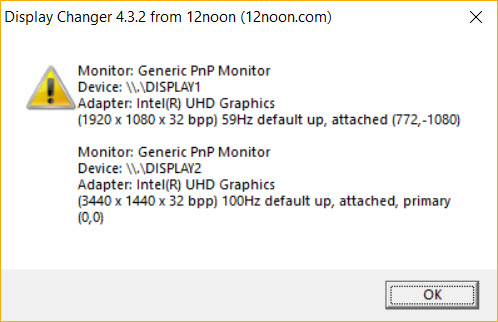
Now you know.
Command-line
Next, you can use the following command line to change the resolution for your monitor of choice:
“C:\Program Files (x86)\12noon Display Changer\dc.exe” -monitor=”\\.\DISPLAY2″ -width=xxxx -height=xxxx
Replace “xxxx” with the preferred resolution(s).
This will execute “Display Changer” in the background, the -monitor switch identifies the monitor to be reconfigured, followed by the preferred width / height resolution.
Try it a few times from a command prompt first.
Configuring your Elgato Stream Deck
Once you have it dialed in, open up your Stream Deck software and search for “Open”.
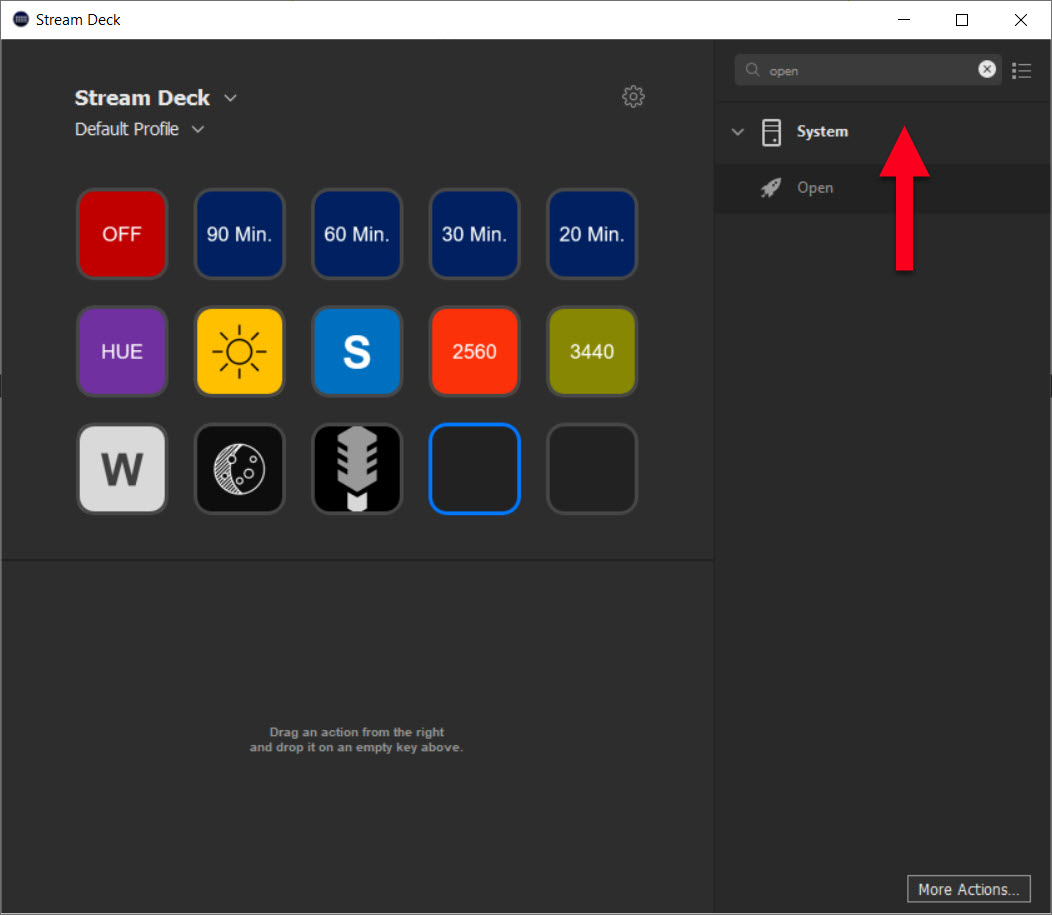
Next, drag the “Open” option onto your Stream Deck.
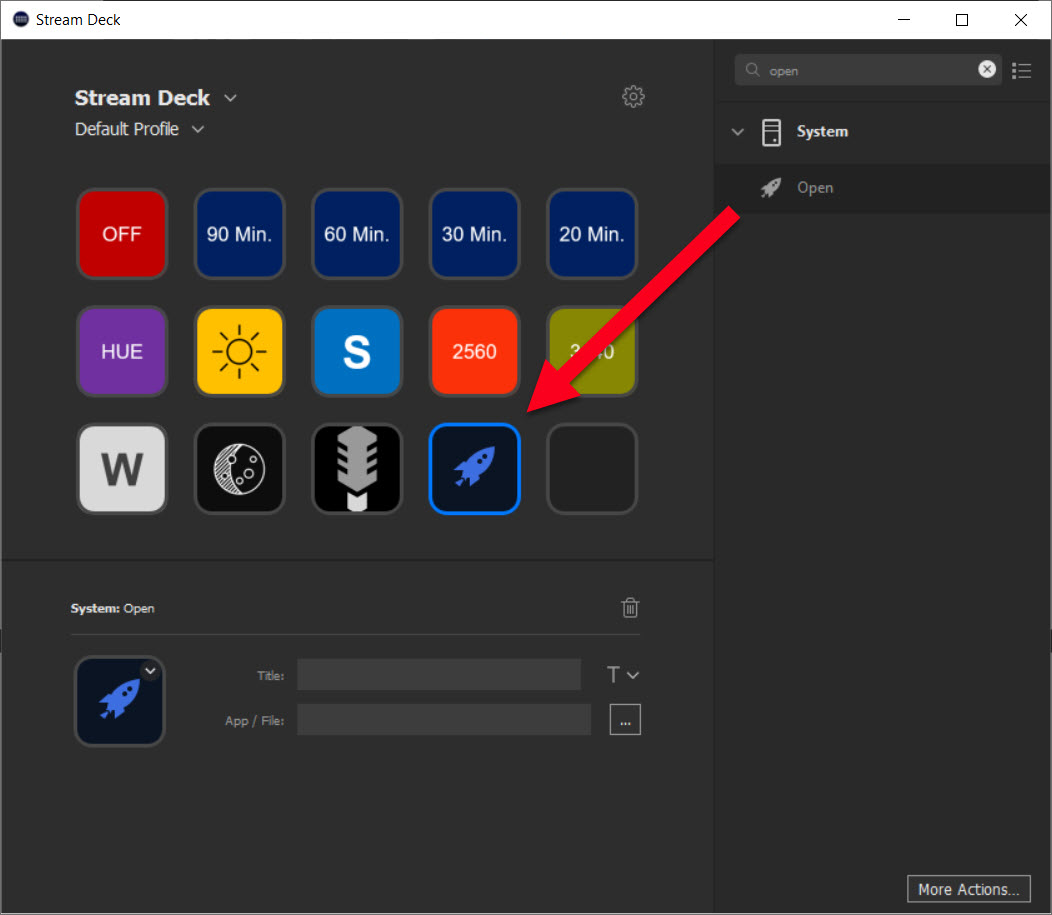
Copy and paste the command-line code into in the “App / File” field and change the default icon into something else.
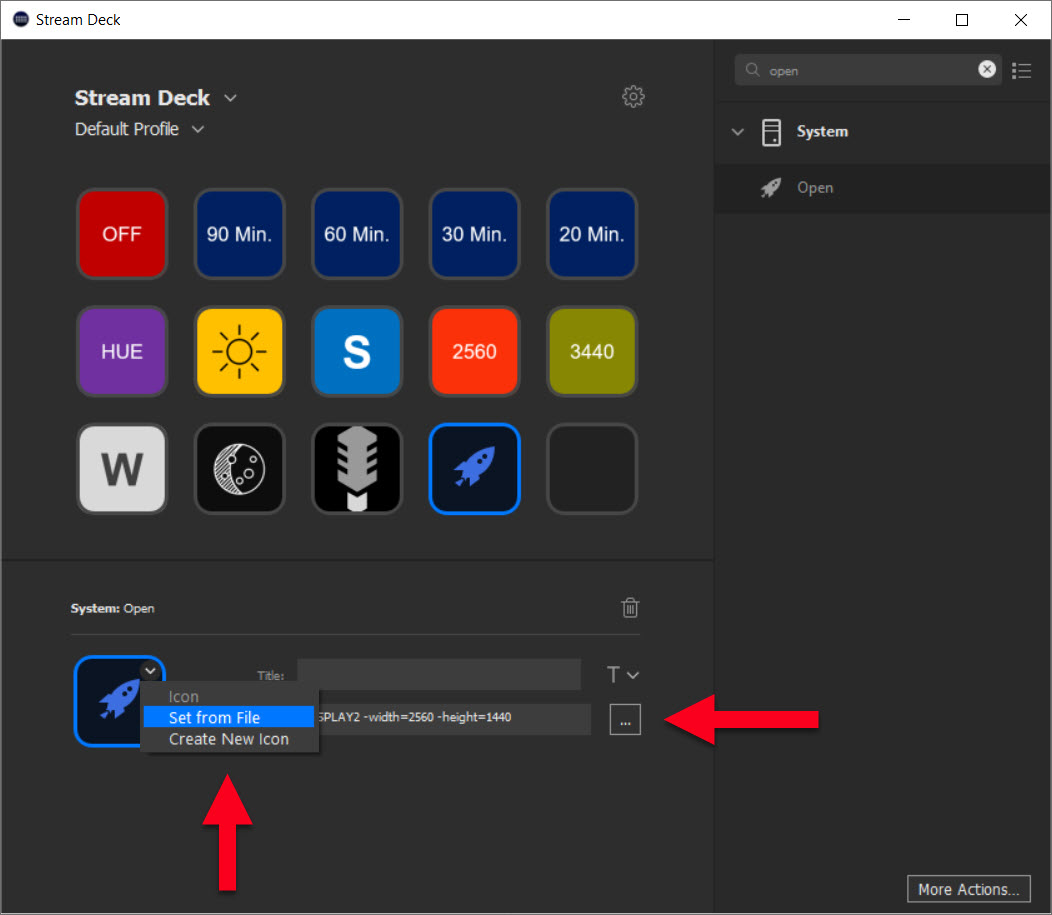
As you’ve probably noticed I made myself a few simply but to the point icons. Open PowerPoint and add in a few 1” squares. Play around with some colors and text and of you go. I use Snagit to cut out the images and safe them as .png files.
I have a 2560 and a 3440-button referencing the normal (3440 X 1440) and slimed down (2560 X 1440) resolution of my 34” widescreen monitor so I can switch back and forth.
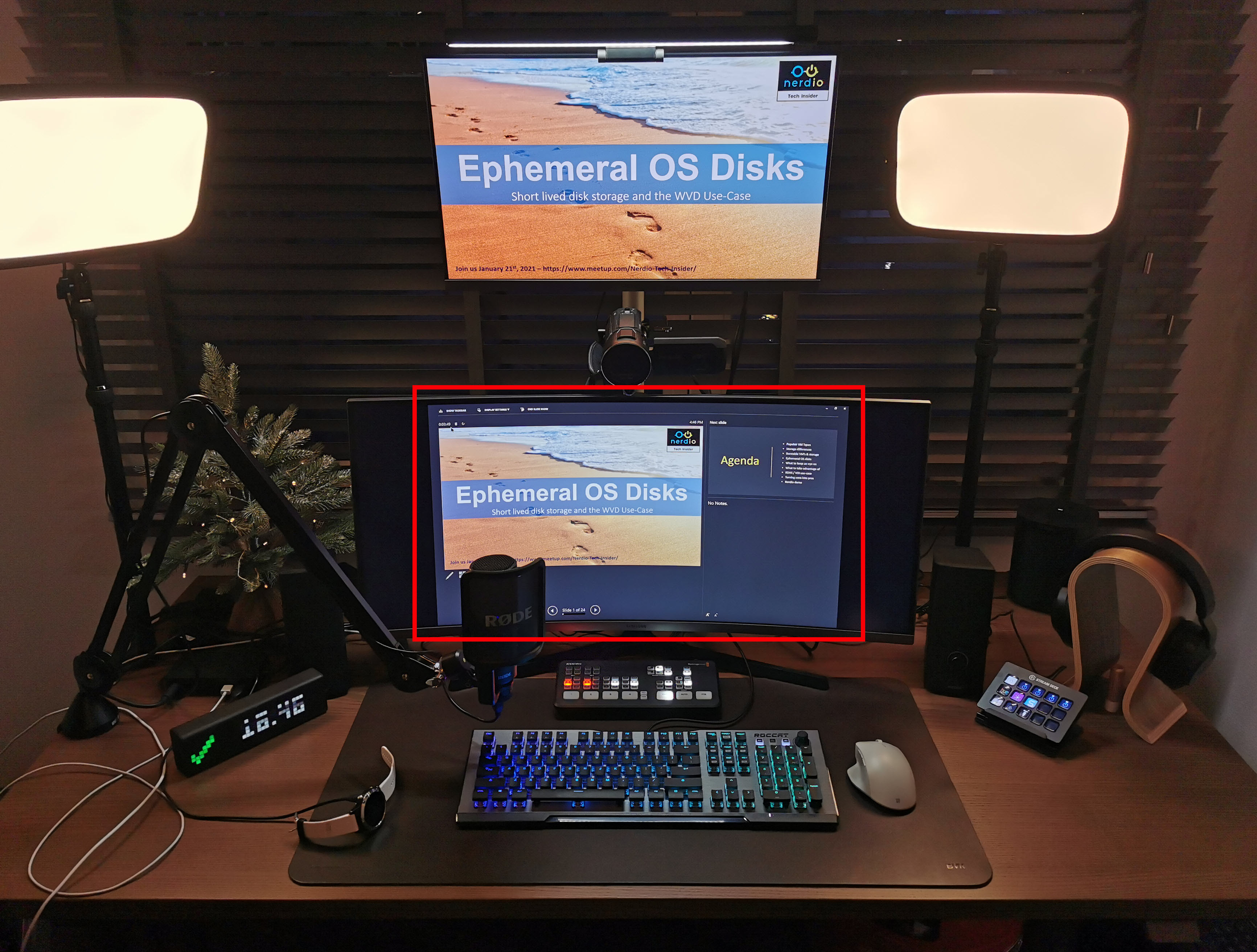
Here is a picture of my setup with the widescreen monitor set to 2560 X 1440.
This is one way of doing it. That’s it, hope this helped.